
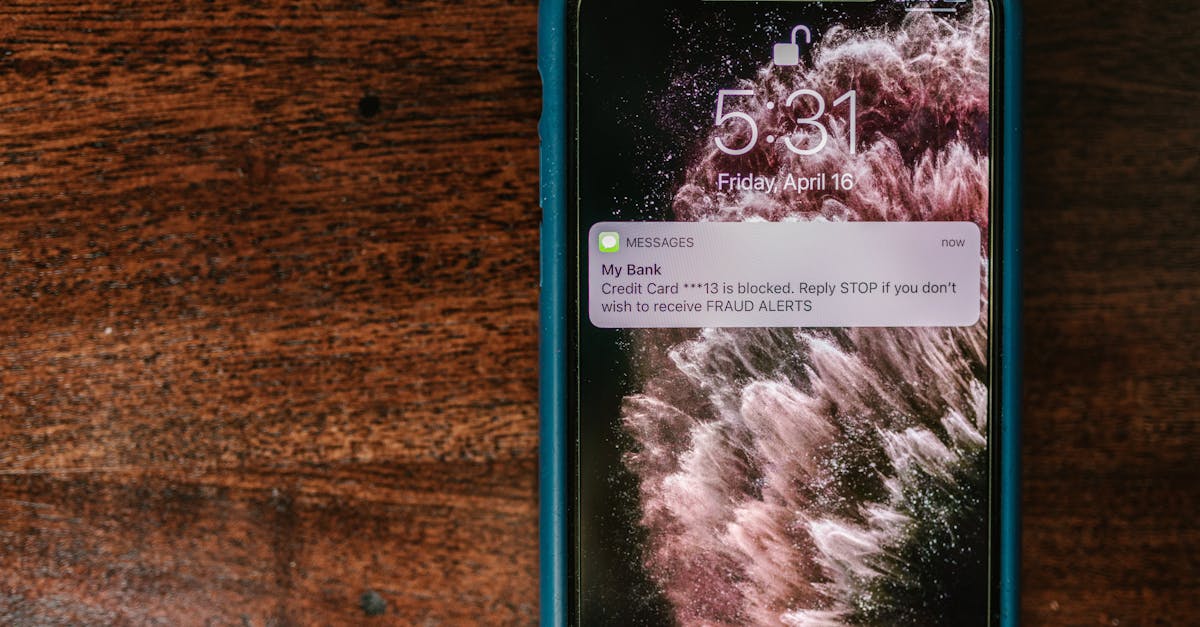
Ever found yourself wondering what your ex or that pesky telemarketer is up to? You’ve blocked their number, but curiosity can be a relentless beast. If you’re an iPhone user, you might think you’ve sealed the deal on that number for good. But what if there’s a way to peek behind the curtain without unleashing chaos on your contact list?
Table of Contents
ToggleUnderstanding Blocked Numbers on iPhone
Blocked numbers on an iPhone prevent unwanted calls and messages, keeping the user’s experience more pleasant. When a number gets blocked, it no longer appears on the contact list or call history. Users often block numbers to avoid disturbances from telemarketers or ex-partners.
Finding information about a blocked number isn’t straightforward. Though blocked contacts won’t show up in standard call logs, their interactions might still have visibility in other ways. Notifications may provide insights into missed calls, even from blocked numbers.
Settings on the iPhone allow users to manage blocked contacts. By navigating to the Phone app, users access the “Blocked Contacts” section under “Settings.” Gaining access to the list shows the blocked numbers, ensuring it remains updated and relevant.
Receiving text messages from blocked numbers goes unanswered but can still be accessed if needed. The user can view their message requests under “Messages,” where certain interactions may remain visible.
Third-party apps can help reveal information about blocked contacts. Some applications provide call tracking and reverse phone lookup features. Users looking for specifics about a blocked number might explore options available in the App Store.
By recognizing these aspects, users can balance their contact lists while maintaining sanity with their communication preferences. Checking and managing blocked contacts simplifies handling unwanted disruptions.
How to Block a Number on iPhone
Blocking a number on an iPhone is straightforward. Users can effectively silence unwanted calls and messages through a few simple steps.
Using the Phone App
Open the Phone app, navigate to the ‘Recents’ tab, and locate the number to block. Tap the information icon next to the number, which opens additional options. Scroll down and select “Block this Caller.” This action immediately prevents future calls, texts, and FaceTime requests from that number.
Through Settings
Access the Settings app on the iPhone and scroll down to find ‘Phone.’ In this section, tap “Blocked Contacts.” Here, users see a list of blocked numbers and can add new ones by selecting “Add New.” Choose the contacts to block, and these numbers will instantly be restricted from contacting the iPhone.
Methods to See a Blocked Number on iPhone
Exploring different methods to see a blocked number on an iPhone can provide users with valuable insights. Accessing blocked numbers might require specific steps and understanding.
Checking Blocked Contacts List
Users can check their blocked contacts list directly through the Settings app. First, they should open the Settings app and scroll down to the Phone option. Tapping on Phone reveals additional options, including “Blocked Contacts.” From here, users can view all numbers that have been blocked. Additionally, this list allows individuals to remove any contacts, unblocking them if necessary. Keeping the blocked contacts list updated ensures clarity and management of unwanted communications.
Reviewing Recent Calls
Recent calls can sometimes provide indirect insights into blocked numbers. Users who receive missed call notifications from blocked contacts will see these notifications in their call log. Accessing the Phone app and selecting the ‘Recents’ tab helps users view these missed calls. They may not have a direct entry in the call log but can identify the number from the notification. This process highlights any attempts at communication from blocked contacts while keeping the main call log uncluttered.
Tips and Tricks
Managing blocked numbers on an iPhone allows users to control unwanted communications effectively. Here are some strategies to monitor blocked contacts.
Unblocking Temporarily
Temporarily unblocking a number can provide users the opportunity to assess recent calls or messages. Access the Settings app, navigate to Phone, and select Blocked Contacts. Unblock the desired number by tapping Edit and the red minus icon. Once the user reviews any missed communications, the same process allows them to block the number again without fuss. This simple action keeps the contact list streamlined while providing insight into missed calls and messages.
Using Third-Party Apps
Third-party apps offer additional options for tracking blocked contacts. Some popular applications provide features like call tracking and reverse phone lookups. Users can search for information linked to blocked numbers without unblocking them on their iPhone. Research options such as Truecaller or Hiya, which are known for effectively identifying callers and tracking communication attempts. Utilizing these apps enhances the user’s understanding of who is trying to reach them, ensuring peace of mind while managing blocked contacts.
Managing blocked numbers on an iPhone can significantly enhance the user experience. By utilizing the settings and features available, users can stay informed about attempts at communication from those they’ve chosen to block. Whether it’s through checking missed call notifications or using third-party apps, there are effective ways to maintain peace of mind while keeping unwanted disturbances at bay.
With the right strategies, users can navigate their blocked contacts with confidence, ensuring they have control over their communication landscape. This proactive approach not only keeps the call log organized but also empowers users to make informed decisions about their connections.

